Skip to main content
How Can We Help?
Plugin Not Connected
The standard Bluvia A/B Testing WordPress Plugin does not require an account or website connection.
This guide only applies if you’re using the Bluvia A/B Testing Premium Plugin and are having trouble connecting your WordPress website to your Bluvia account.
The Premium Plugin is used when you want access to additional capabilities such as Global and Advanced tests which includes Heatmaps and Screen Recordings.
Before You Start
To use the Bluvia A/B Testing Premium Plugin, you’ll need a Bluvia account.
The Premium Plugin is downloaded from your account rather than installed through the WordPress plugin directory.
Before troubleshooting, confirm that you have:
- Created a Bluvia account.
- Downloaded the Premium Plugin from your account.
- Installed and activated the standard Bluvia A/B Testing WordPress Plugin.
- Uploaded and activated the Premium Plugin on your WordPress website.
For the complete setup process, see Connecting Your Website.
Confirm Both Plugins Are Active
The Bluvia A/B Testing Premium Plugin works alongside the standard WordPress Plugin.
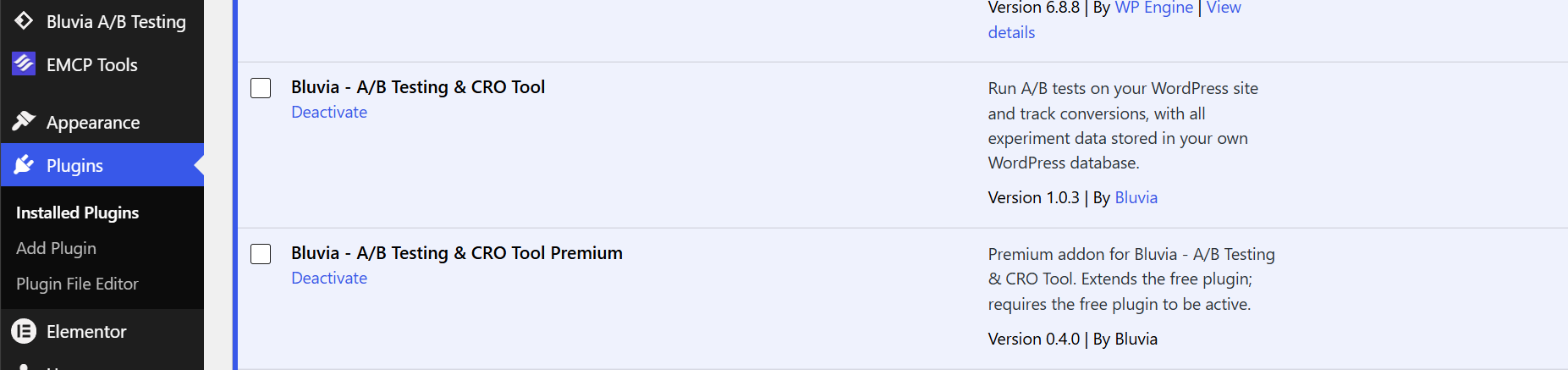
From your WordPress Admin Dashboard, navigate to Plugins and confirm that both plugins are installed and activated.
If the Premium Plugin isn’t installed yet, log into your Bluvia A/B Testing account and download it from the License section.
Confirm You’re Using the Correct Email
The Premium Plugin must be verified using the email address associated with your Bluvia A/B Testing account.
When prompted during connection, enter the same email address you used to create your account.
Using a different email address may prevent the website from being successfully verified.
Check Your Verification Email
Bluvia A/B Testing uses a magic link or one-time code to verify the connection between your account and WordPress website.
If you don’t receive the verification email:
- Confirm that you entered the correct email address.
- Check your spam or junk folder.
- Allow a few moments for the email to arrive.
- Request a new magic link or one-time code if needed.
If you request another verification, use the most recent link or code you receive.
Complete the Connection
Follow the instructions provided during verification to complete the connection.
Once your email and plugin are successfully verified, the Premium Plugin will be connected to your Bluvia A/B Testing account.
You can then use the Premium features available with your plan directly within WordPress.
Check Your Account
If you’ve completed verification but the Premium Plugin still doesn’t appear connected, log into your Bluvia A/B Testing account and review your connected websites and license information.
Make sure you’re signed into the same account used when verifying the Premium Plugin.
Your Bluvia A/B Testing account dashboard is used for connected website and license management. Experiments and experiment results continue to be managed directly within WordPress.
Still Having Trouble?
If both plugins are active and you’ve completed the verification process, but the website still isn’t connected, contact Bluvia A/B Testing Support.
When contacting Support, include:
- The website you’re trying to connect.
- The email address associated with your account.
- Whether both plugins are installed and active.
- Whether you received the verification email or code.
- What happens when you attempt to complete verification.
- Any error message you’re seeing.
Do not include passwords, one-time codes, or other account credentials in your support request.
Related Articles
Continue with: